Features

The panel, feature by feature

Deploy a game server, then run it from one dashboard. These are the tools in the panel today.

Live console and RCON

The console shows the server log, with search and download. Commands go to the node. When a port is marked RCON and RCON is enabled with a password, that same line is sent over RCON — the header shows RCON Active — and a Minecraft server gets player actions for whitelist, ban, op, and gamemode.
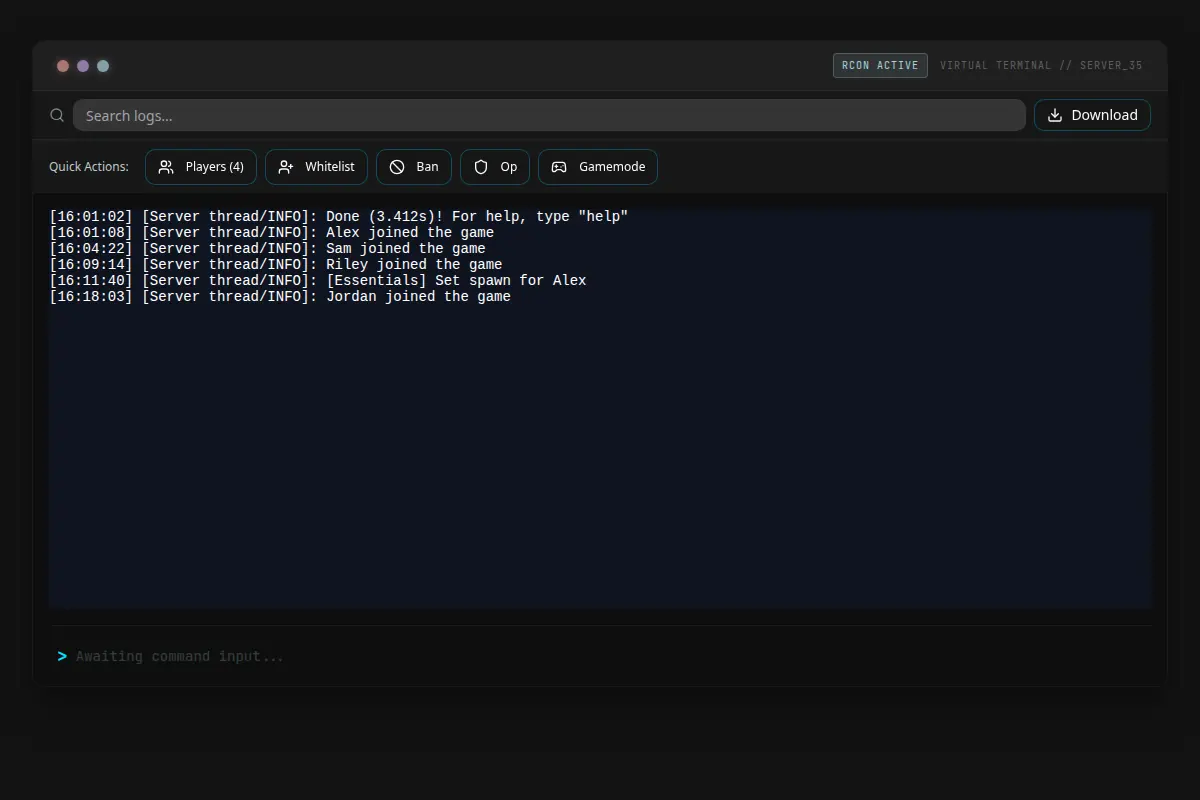
BrontoPanel server console for a running Minecraft server, with RCON active, log search, and a command line

Files and SFTP

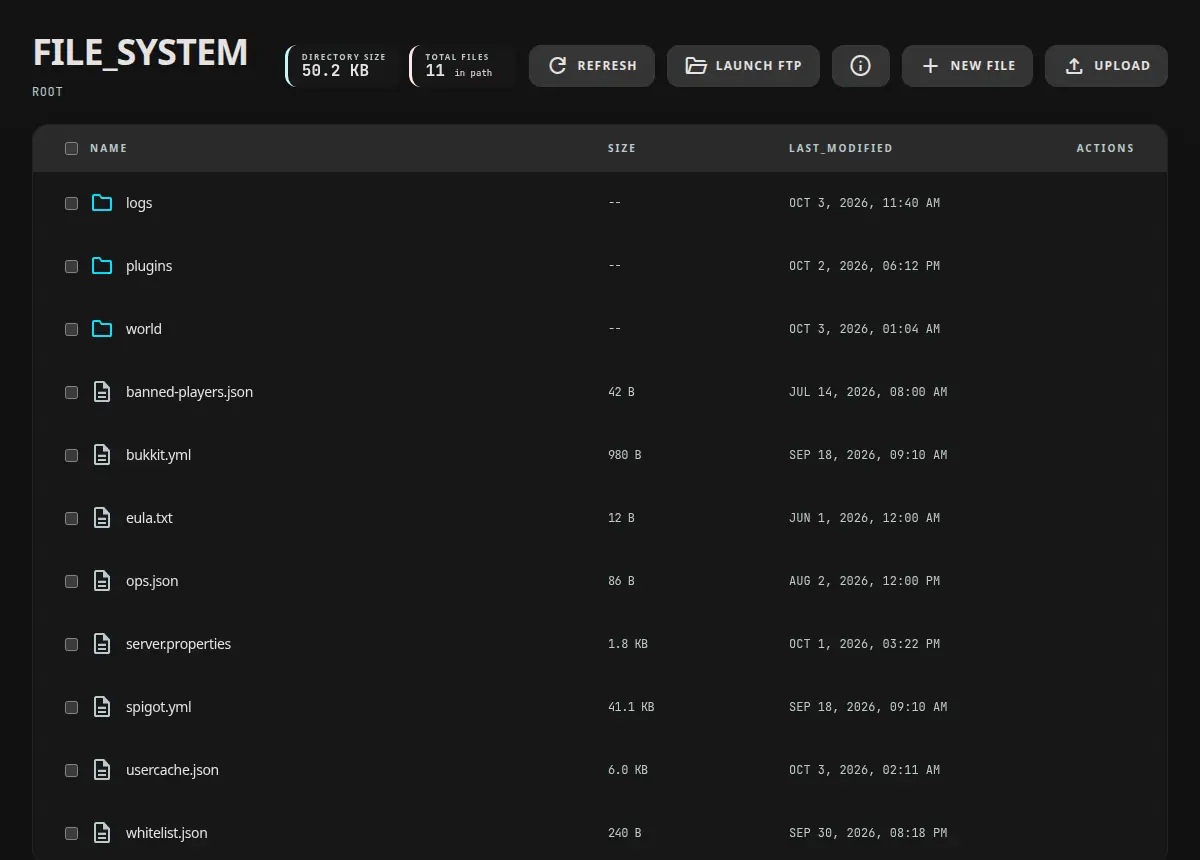
Browse the server directory, edit a file, and upload, download, create, or delete. SFTP credentials for the node agent open from the same tab, and the password can be rotated.

File manager listing plugins, world, logs, server.properties, and other server files

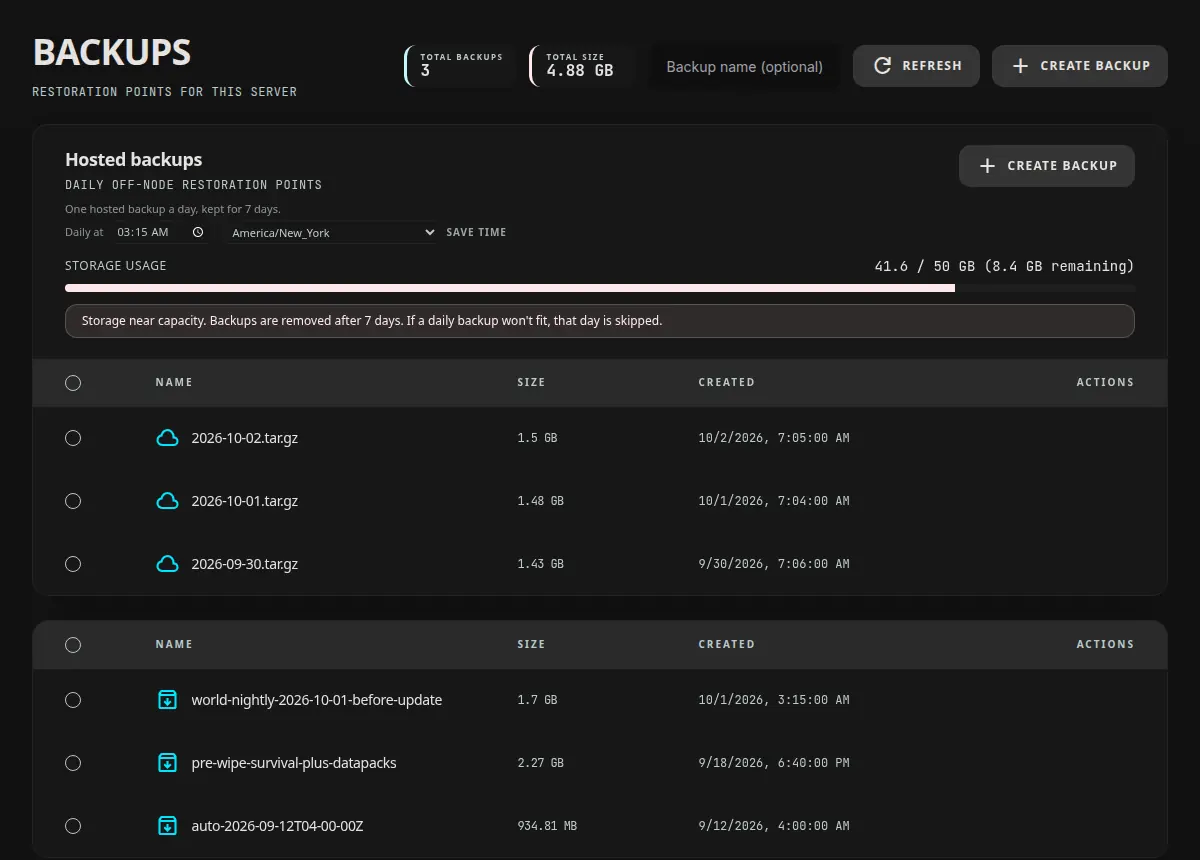
Local and hosted backups

Local backups stay on the node: name one, restore it, or delete several at once. Hosted backups are the off-site copies. A backup plan (50 GB, 200 GB, or 1 TB) stores them, with a daily off-site time and restore. Copies for a deleted server stay available from the node.

Backups screen with hosted off-site copies and local backups for a Minecraft server

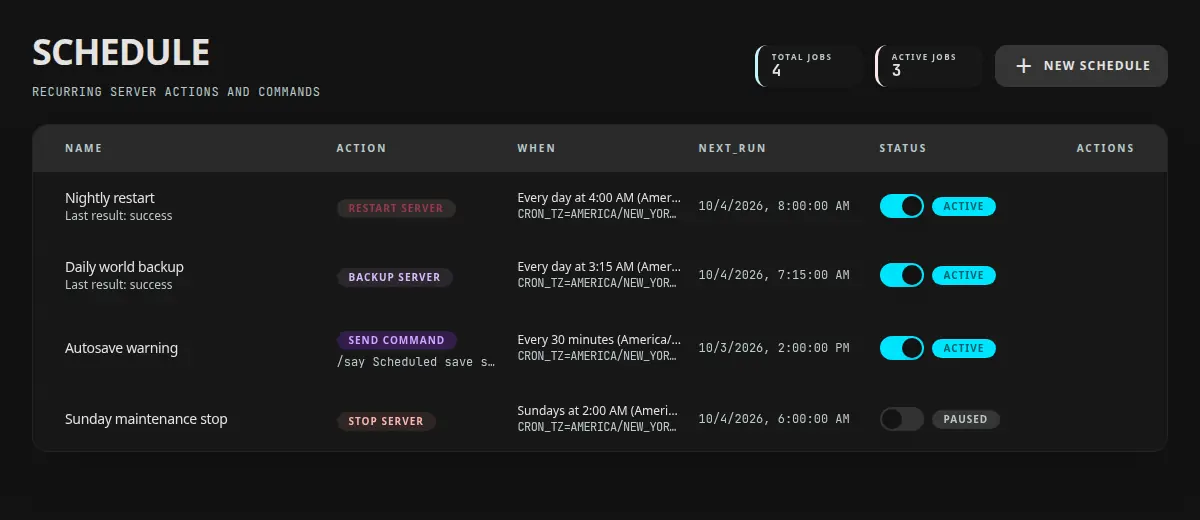
Schedules

Schedule a start, stop, restart, backup, or console command. Each task has a timezone and a next run. Backup tasks can keep a set number of copies.

Server schedules for a nightly restart, a daily world backup, a timed command, and a paused stop

Rent a node, or bring your own

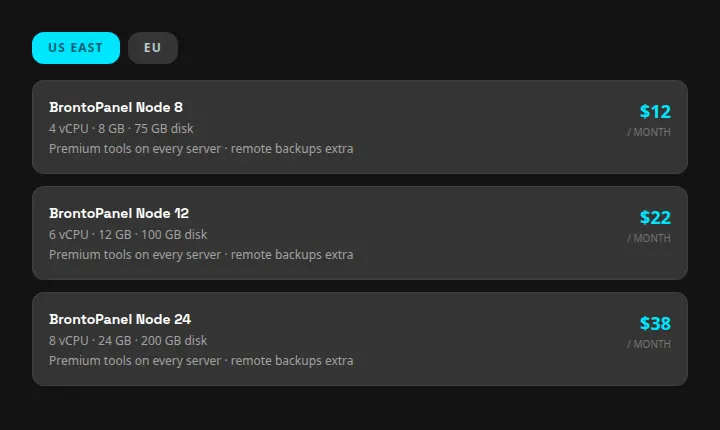
Paste the agent install command on a machine you already run, or rent a BrontoPanel node. Rentals are provisioned through Contabo — Node 8, Node 12, and Node 24 — in US East or EU, and billed as a Stripe subscription. Premium tools are included on a rented node; remote backups are a separate plan.

Rent a BrontoPanel node in US East, choosing Node 8, Node 12, or Node 24

Deploy, access, and the account

The rest of the panel, from the first deploy through billing.

Easy and advanced deploy

Easy Deploy picks a game and an online node and starts the server. Advanced walks through the game, the blueprint, and the node, then the name, CPU, memory, and ports. The advanced wizard can also import a Pterodactyl export.

Port conflict assistant

If a game, query, or RCON port is already used on the node, deploy and server start name the other server and suggest a free port. Use that port in one click.

Node capacity advisor

Before deploy, the panel compares the CPU and memory you asked for with the capacity the node advertises. If there is not enough headroom, it shows how many cores and how many megabytes you are short.

Invites

Invite someone to a realm by username or email, including a friend who does not have an account yet. A new email address gets a signup link, and you choose the role they join with.

Authenticator MFA

Security turns on an authenticator app. Setup shows a QR code and backup codes. The next login asks for a code, and you can log out every device.

Stripe billing

Stripe bills rented nodes, Premium, and backup storage. Billing shows what you spend and opens the Stripe customer portal to update the payment method. Card numbers stay with Stripe.

Databases

On a Premium server, the Databases tab creates a MariaDB database on the node. Rotate the password from the database card when you need a new one.

Activity

Realm and server activity logs record deploys, access changes, and other panel actions so you can see who changed what.

Create a realm and deploy

Sign in to a panel you already use, or create an account and add a node.